
Video Summary.
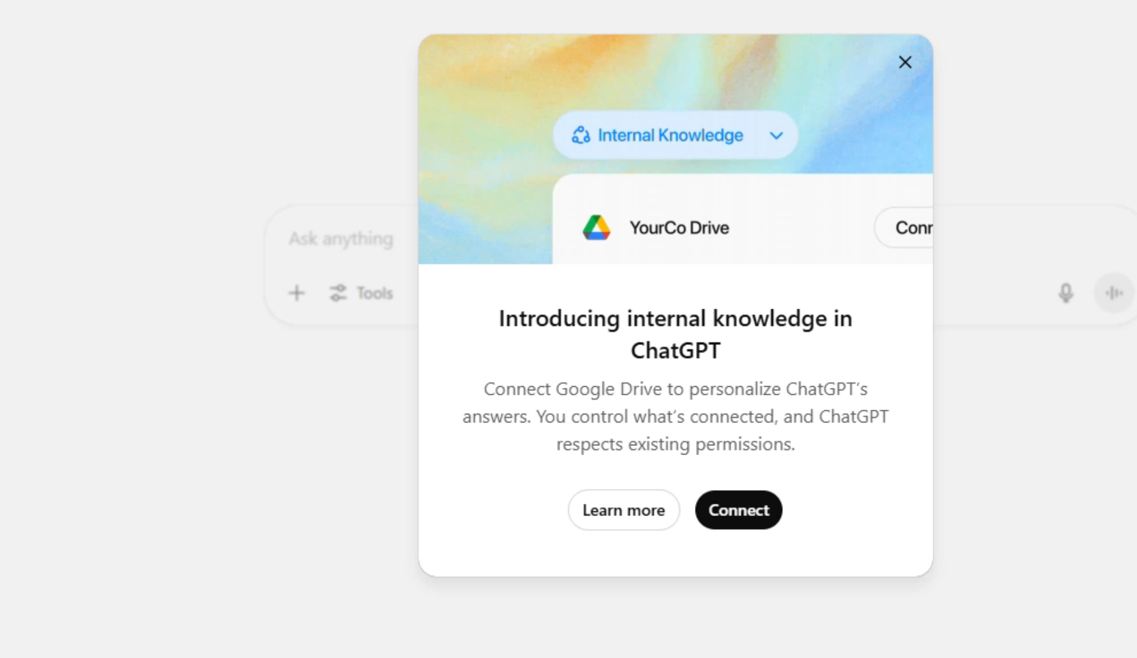
When users log into ChatGPT, they may see a splash screen that introduces a feature related to Google Drive, highlighting its internal knowledge capabilities. This feature encourages users to explore its functionalities and connect their Google Drive accounts. The Google Drive Synced connector is available to users subscribed to Pro, Team, Enterprise, and Edu plans. It supports a wide range of file types, including Google Docs, Google Slides, PDFs, Word documents, PowerPoint presentations, plain text files, and markdown files stored in Google Drive. However, it is crucial to note that Google Sheets and Excel workbooks have only partial support within this feature.
The main objective of syncing the Google Drive connector is to improve the speed of responses when retrieving information from Google Drive. Users are prompted to connect their Google Drive account, and if they have previously established a connection, they must enable the sync feature to interact with Google Drive through ChatGPT. This process requires users to click on the “Enable Sync” option.
For users operating under a team account, ChatGPT offers a choice between a self-service setup or an admin-managed configuration. For demonstration purposes, the self-service option is selected. After the connection is established, users can access the tools area, select the option to search internal sources, and then choose Google Drive as their source for information.
Once the Google Drive connector is successfully set up, users can utilize ChatGPT to access documents stored in their Google Drive. They can ask about specific documents that are relevant to their ongoing conversation within ChatGPT. When users enter their queries, ChatGPT reads the source documents from Google Drive and integrates that information into the dialogue. This integration allows users to connect their Google Drive documents with their queries in ChatGPT seamlessly, thereby enhancing the overall user experience.